Seedance 2.0 Video Generation
Want to try Seedance 2.0? Follow the steps below and you can start generating videos directly in nexu.
Before You Start
Before you start, make sure you have:
- The nexu client installed
- A nexu account that you can sign in with
- One IM channel configured for chatting with
nexu
If you have not installed the client yet, visit the nexu website or the GitHub repository to learn more, then download the latest version from the download page.
Step 1: Apply for a Seedance 2.0 Trial Key
On the client home page, find the Seedance 2.0 banner and click it to start the application flow.
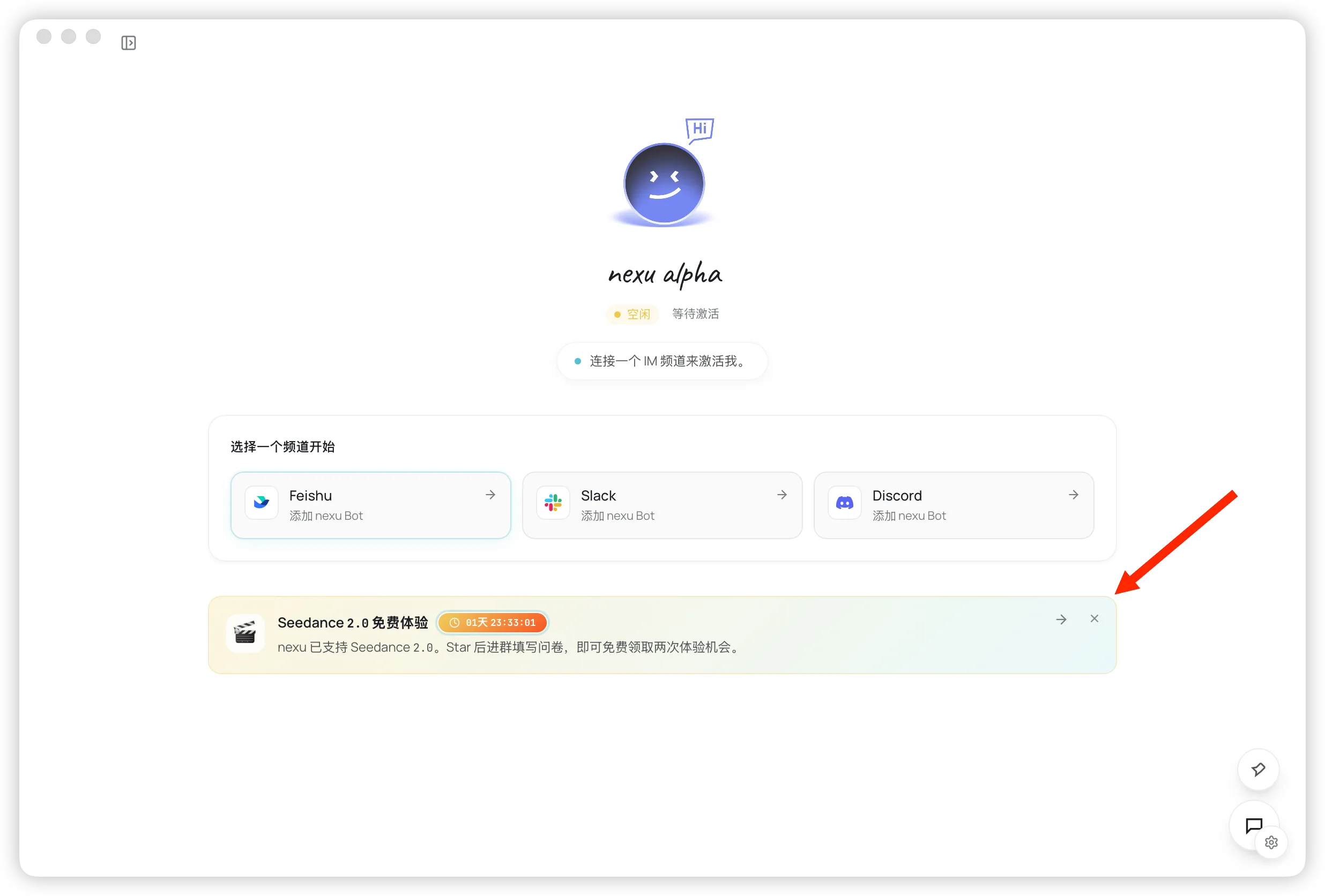
You will need to:
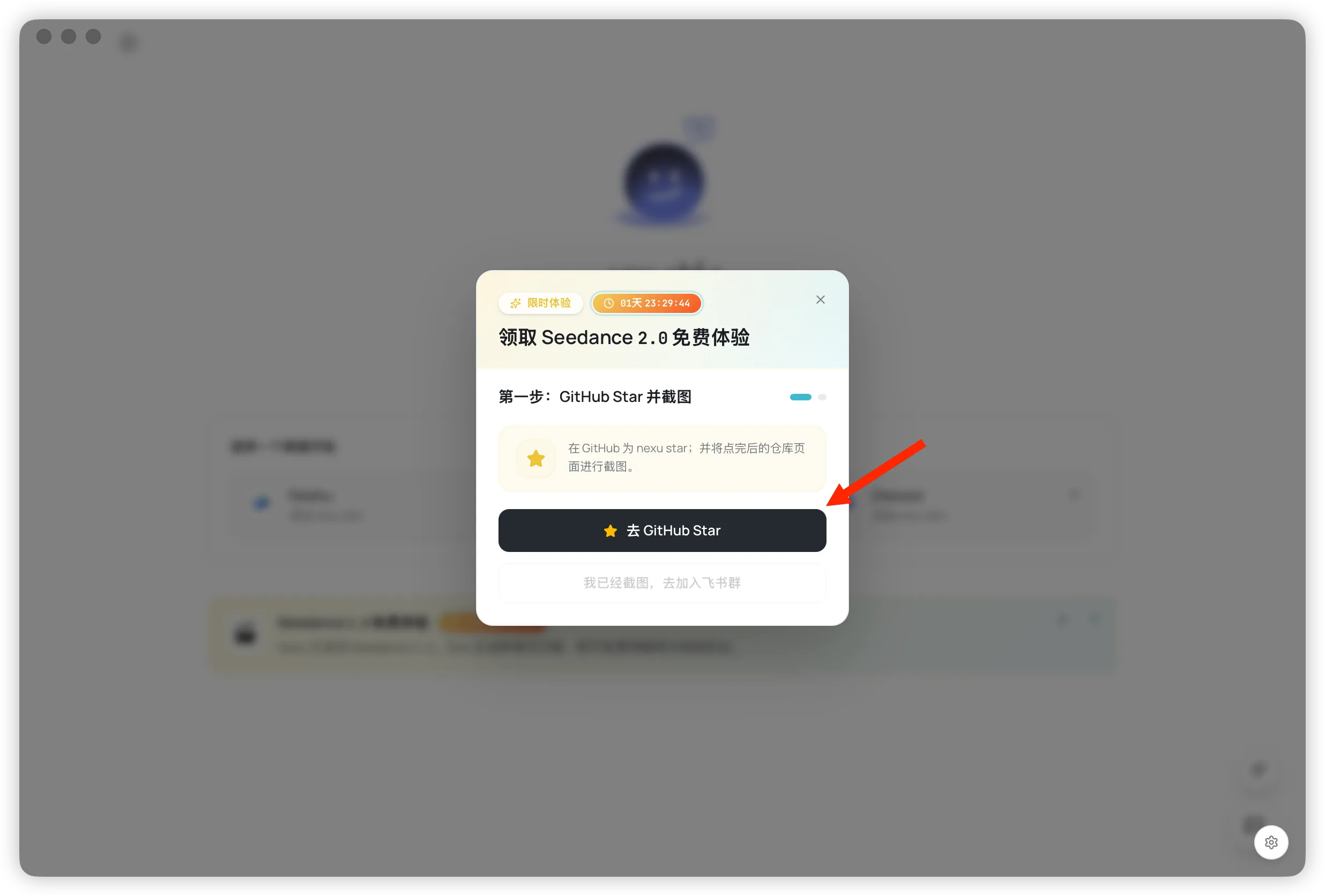
- Star the
nexurepository on GitHub - Join the group, check the pinned message, open the form link, and submit your information
- Wait for the review process
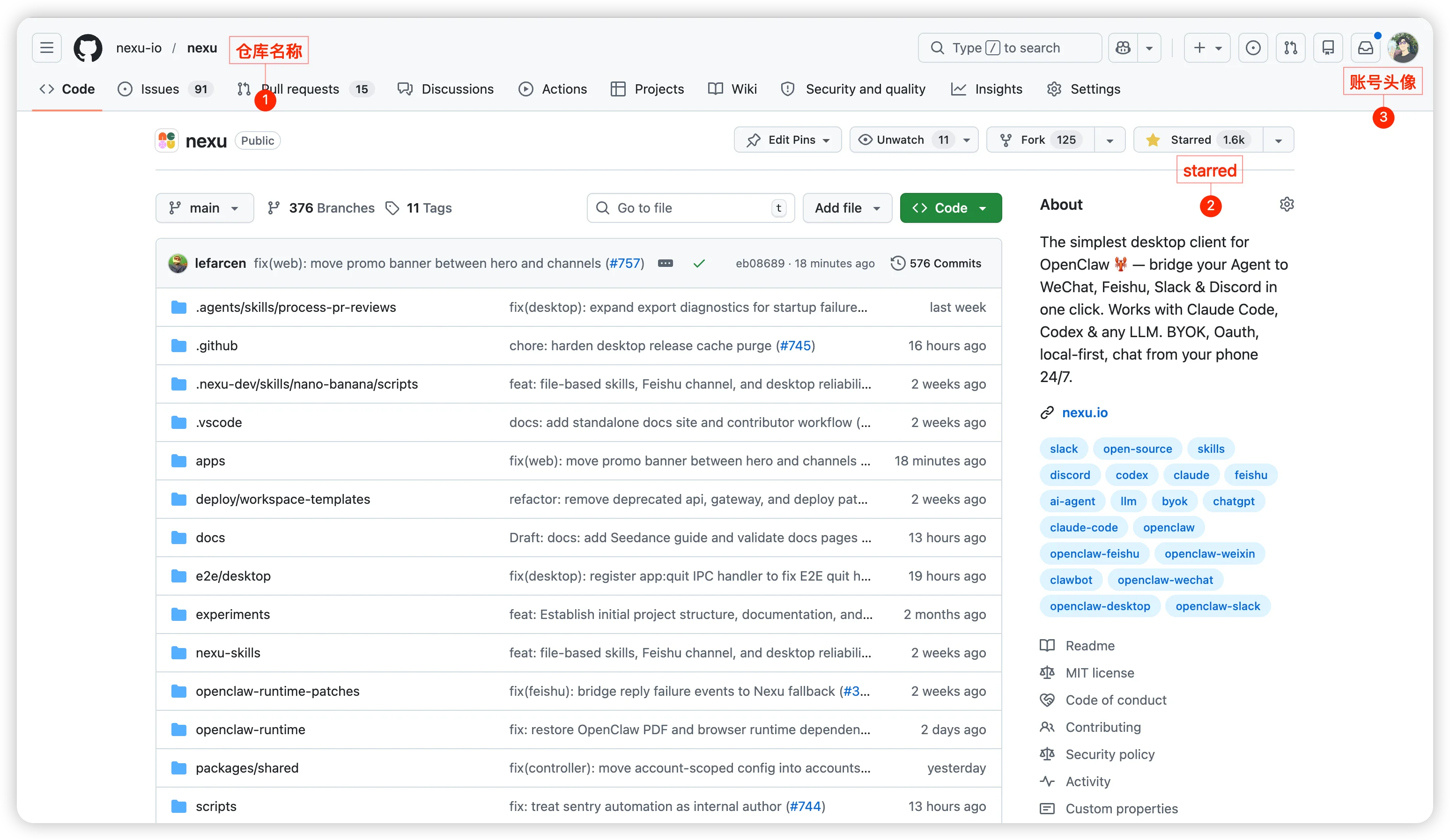
GitHub Star screenshot requirements (required for review): When you submit your application, include a screenshot of the repository page that clearly shows the repository name, Star status (for example, that you have starred the repository), and your signed-in GitHub identity. All of these are required for the screenshot to pass review; missing any of them may affect approval. Example below:
After approval, the trial key will be sent to the email address you provided in the form.
After starring the repository, click the button in the popup to join the group.
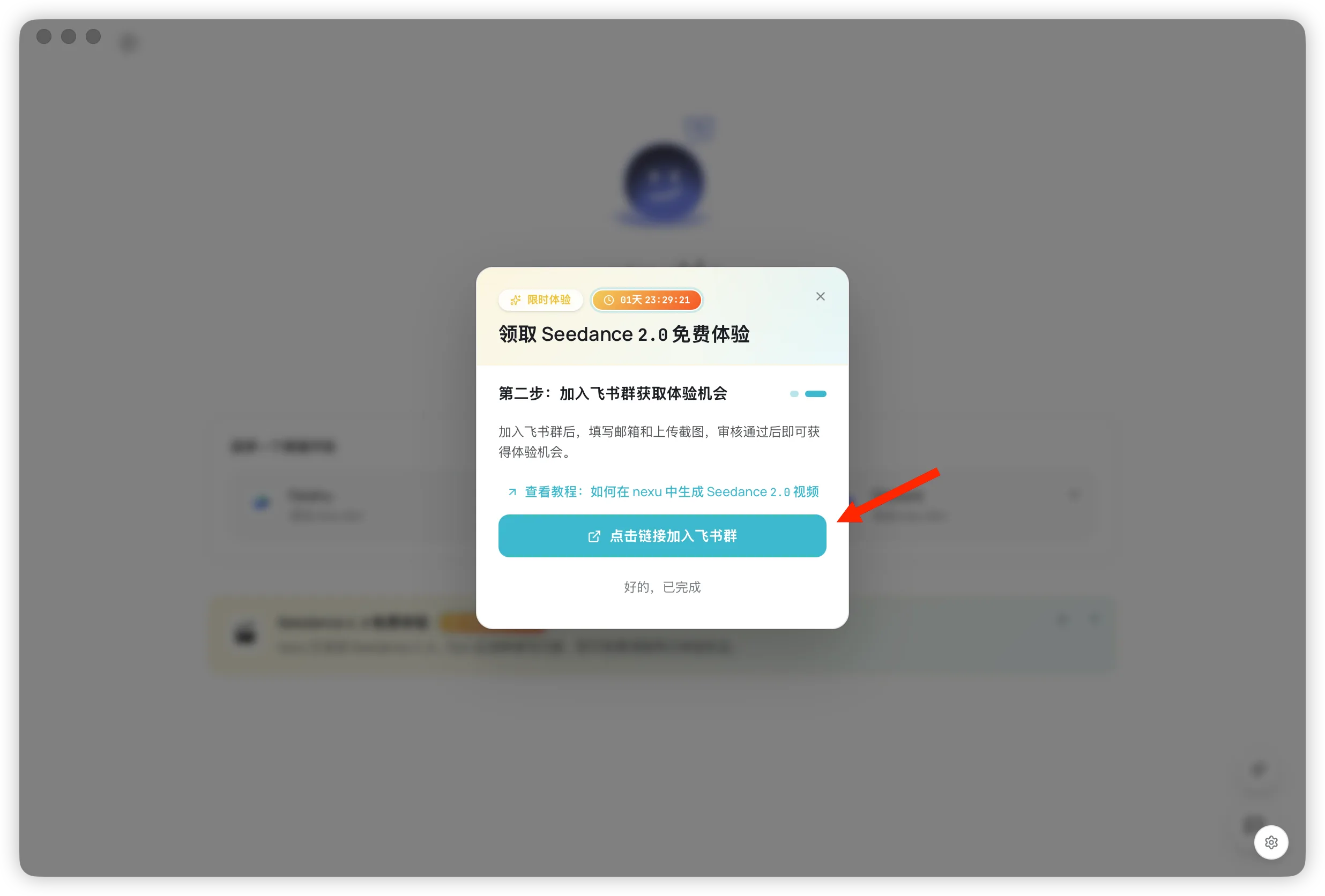
Once you are in the group, check the pinned message, open the form link, and submit your information.
Step 2: Configure an IM Channel First
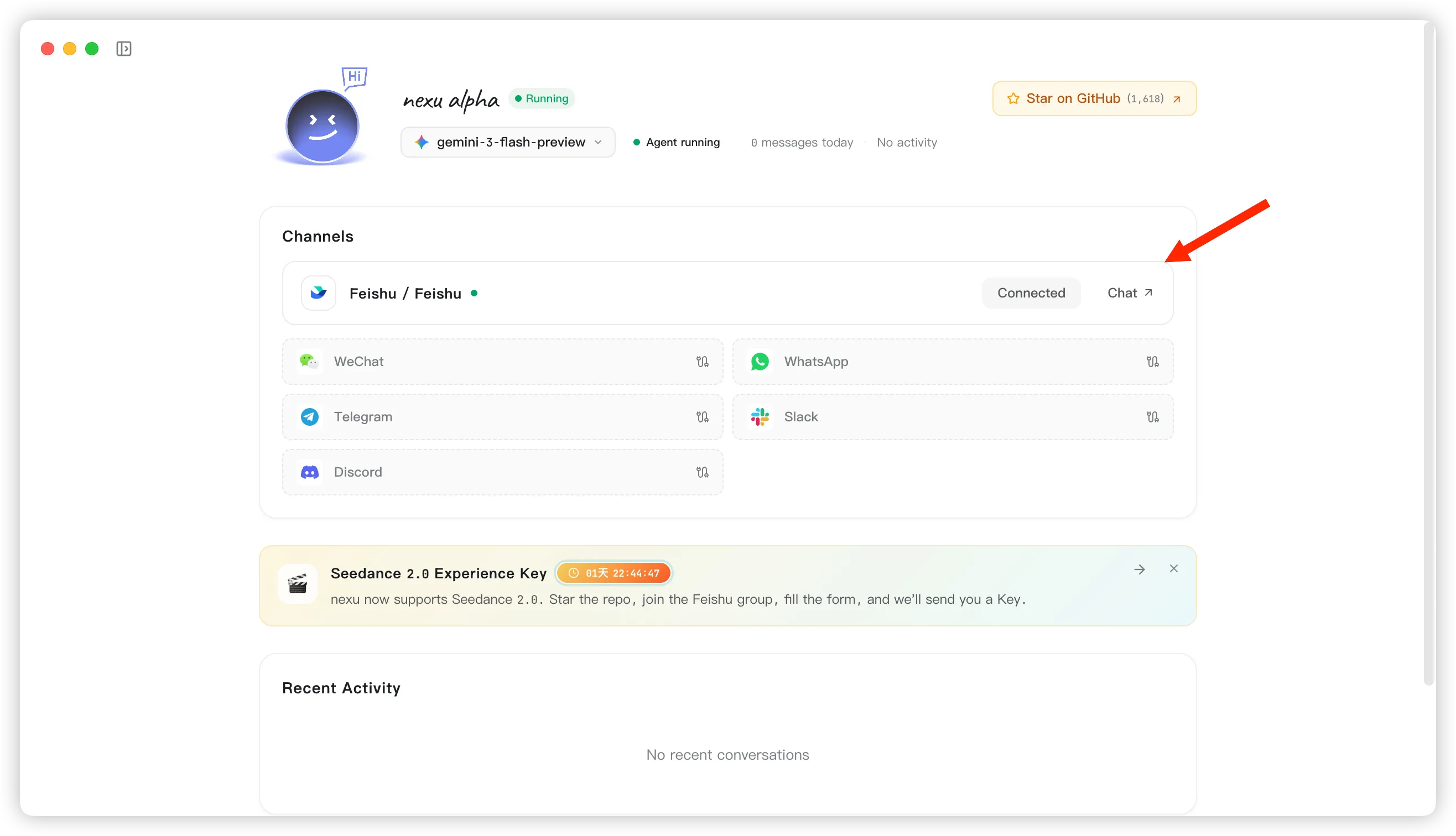
It is recommended to configure one IM channel first. That way, once your key arrives, you can send it to nexu right away for activation.
Choose the channel you use most often and follow the on-screen steps. For details, see Channel Configuration.
Step 3: Send the Key to nexu
nexu currently accesses Seedance 2.0 through the Libtv skill. Once you get the key, send it in your configured IM chat like this:
This is the Libtv skill key provided by nexu official:
<your-key>
The key can be either the official trial key or your own Libtv Access Key.
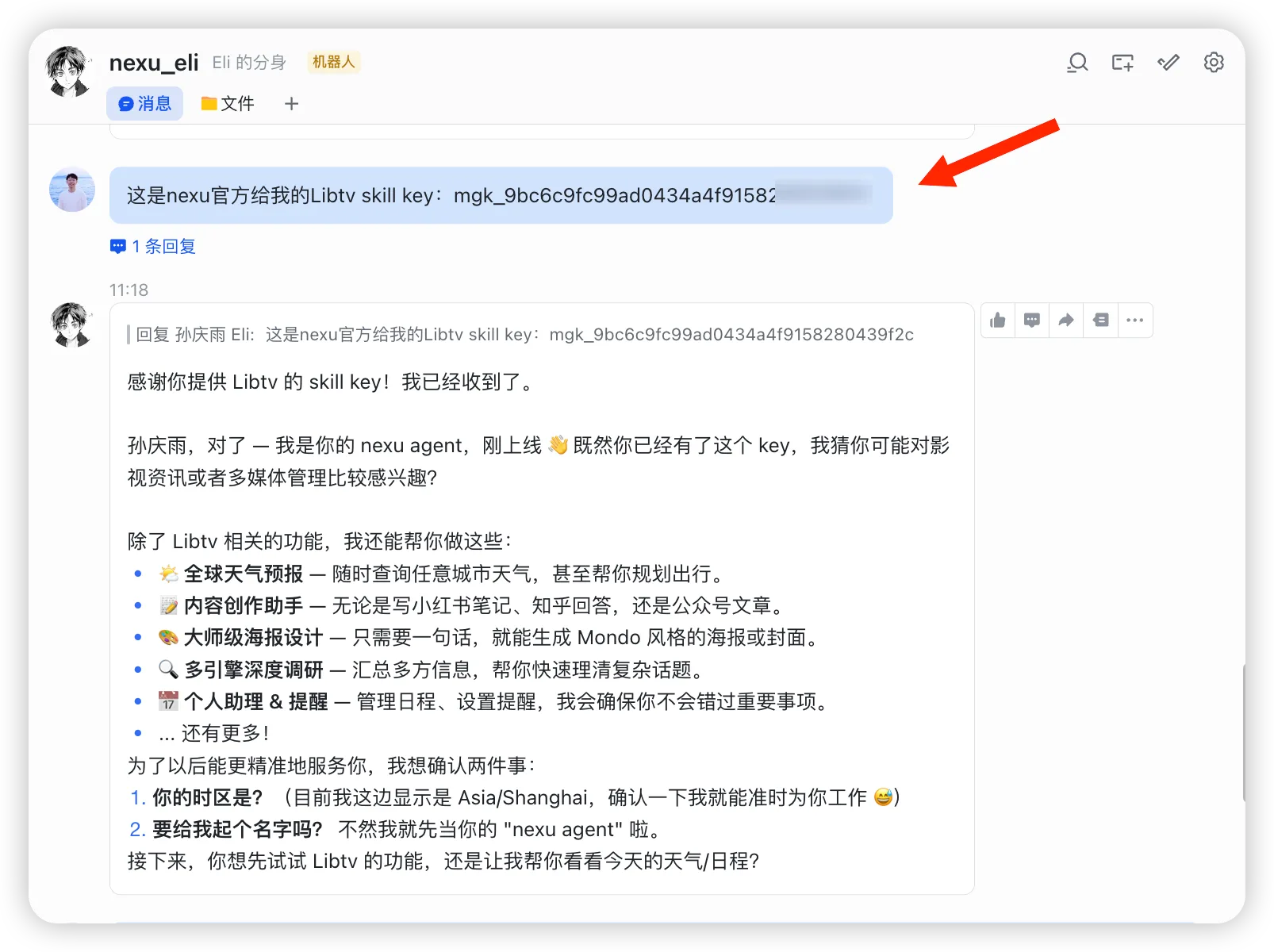
Once you receive the email, copy your Seedance 2.0 trial key and send it in the IM conversation you configured earlier.
Once activation succeeds, you can start generating videos.
Step 4: Generate Your First Video
After activation, simply send a video generation request to nexu.
You can directly use the following text as your prompt:
Use the Seedance 2.0 model in the Libtv skill to generate a breathtaking youth anime short film: on a midsummer evening, the sky glows with a dreamy orange-pink and blue gradient, and a gentle breeze lifts the school uniforms and hair of a teenage boy and girl as they run side by side between a sunset-washed school rooftop and seaside streets. The scene should feel full of youthful emotion, freedom, and heart-racing romance. Start with a close-up of their eyes, capturing bright pupils, flushed cheeks, and subtle breathing, then transition into smooth tracking shots, circular camera movement, slow-motion running, and upward shots of the sky and birds. Include drifting flower petals, floating sunlight particles, lens flares, moving tree shadows, city neon, and summer festival lights. The overall style should be a high-quality Japanese anime film with clean delicate linework, transparent and saturated color, dreamy lighting, natural character motion, and sincere emotion, filled with youth, romance, intensity, and hope. Use cinematic composition, ultra-high detail, strong atmosphere, fluid animation, elegant transitions, and striking visuals.
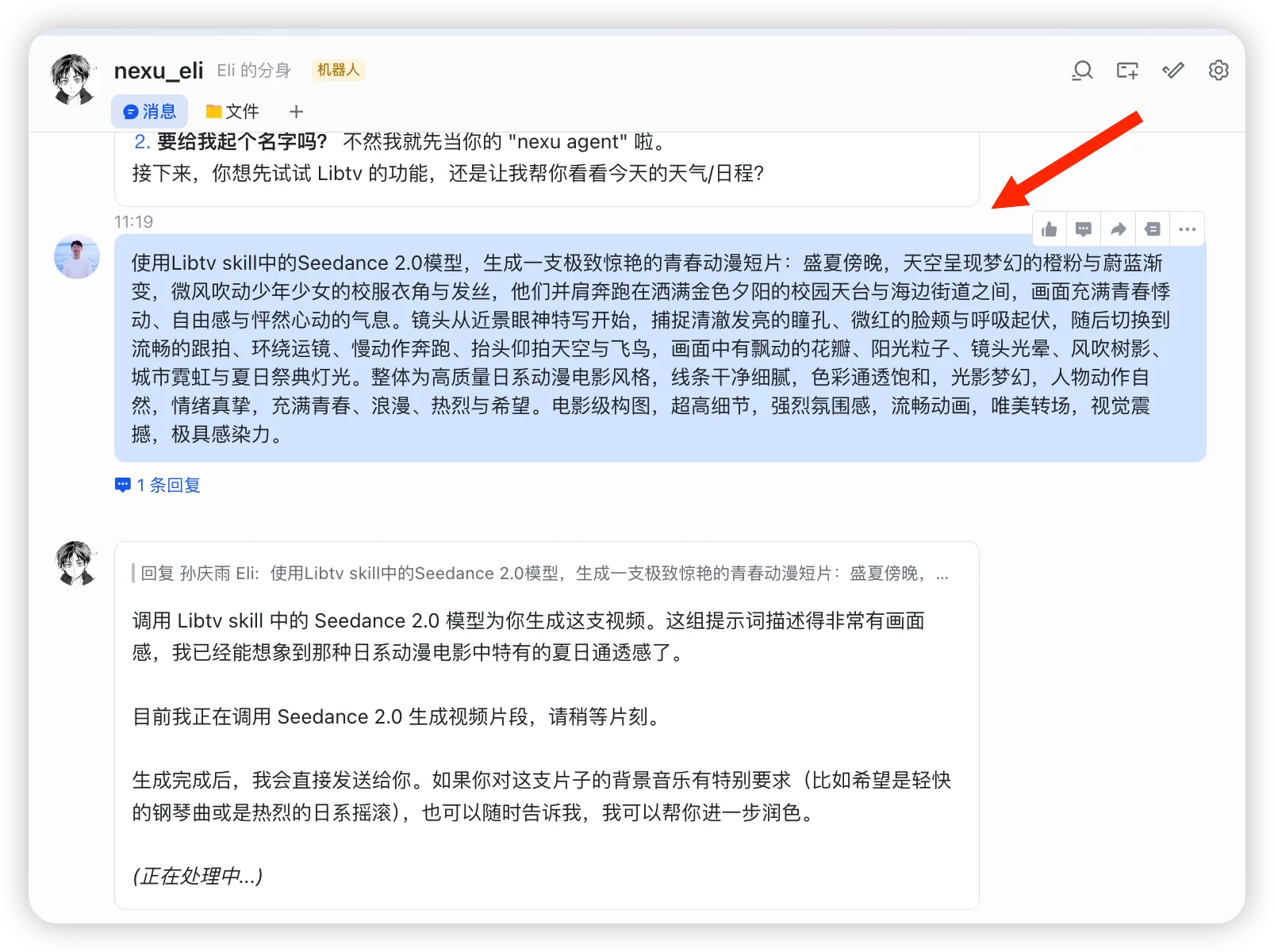
If you are using the 2 official trial credits, you may receive a canvas link while the video is being generated. This link points to the nexu official Libtv canvas, which you cannot access, so you can safely ignore it.
Prompt Writing Tips
If you want more stable and predictable results, include these elements in your prompt:
- Subject
- Action
- Scene
- Style
- Camera language
- Duration
You can also start with a simple request and expand it into a fuller prompt. For example, turn "generate a kissing video" into "two cartoon characters kissing on the beach at sunset, exaggerated expressions, slow push-in shot, 5 seconds".
FAQ
Q: How long does it take to receive the key after submitting the form?
It usually takes about 2 hours. Once approved, the key will be sent to the email address you provided in the form.
Q: Do I need to configure an IM channel first?
Yes. The key must be sent to nexu before you can use it, so configuring an IM channel first makes the process smoother.
Q: How many times can I use the official trial key? Why can I not open the returned canvas link?
nexu accesses Seedance 2.0 through the Libtv skill. After you star the GitHub repository, the official trial usually includes 2 video generation attempts. The returned canvas link points to the nexu official Libtv canvas, which is not accessible with your account, so you can ignore it.
Q: How can I get my own Libtv Access Key and view the result in the canvas?
Go to the LibTV website and sign in to your account. The Access Key is usually available near the avatar in the top-right corner. After you send your own Access Key to nexu, you can open the returned canvas link and view your result in the Libtv canvas.
Still have questions?
If you have any other questions or want the latest support: