

WhatsApp
Connect your personal WhatsApp to nexu with a single QR scan — takes less than 2 minutes.
Step 1: Select the WhatsApp Channel
Open the nexu client and click WhatsApp in the "Choose a channel to get started" section.
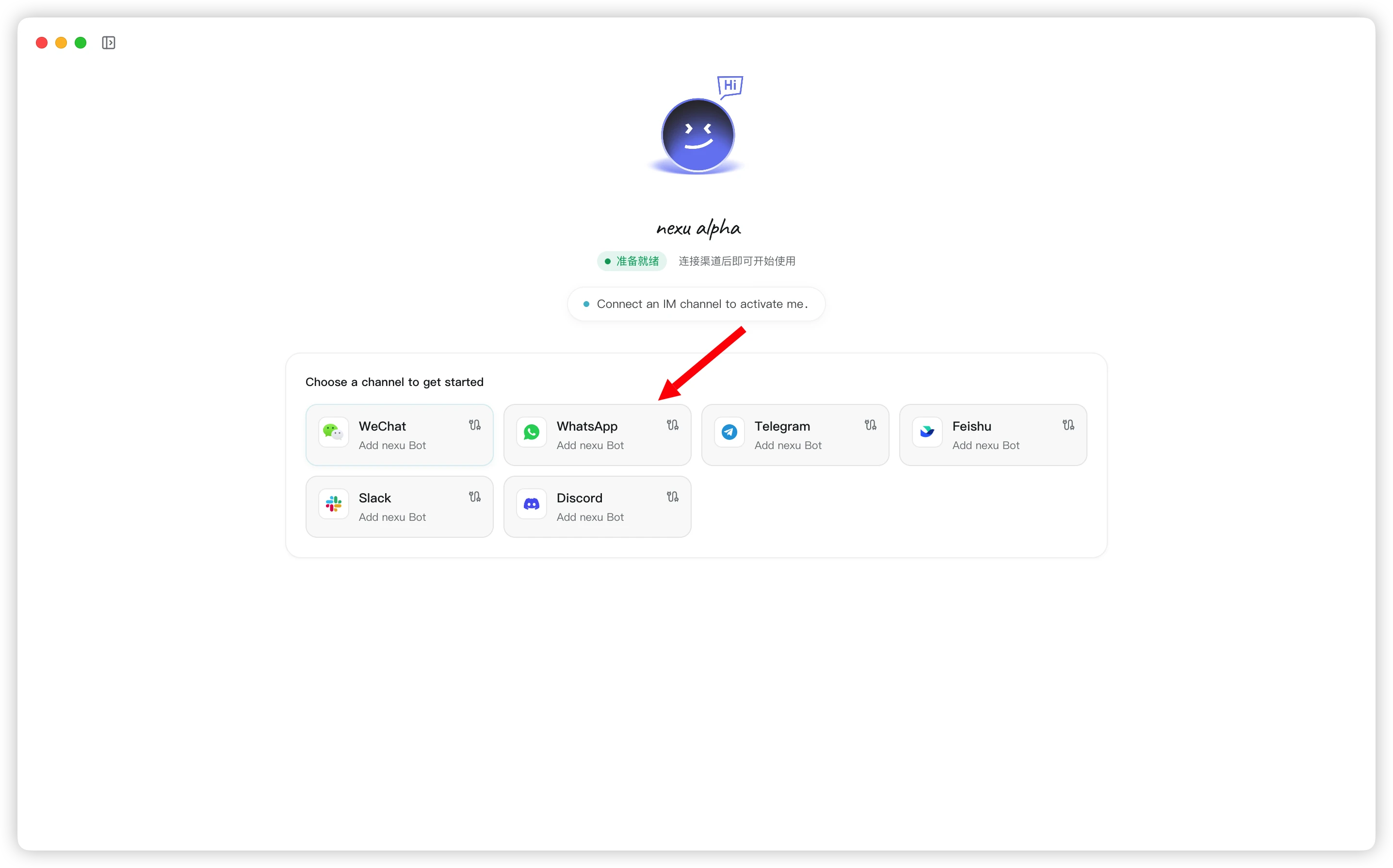
Step 2: Scan the QR Code
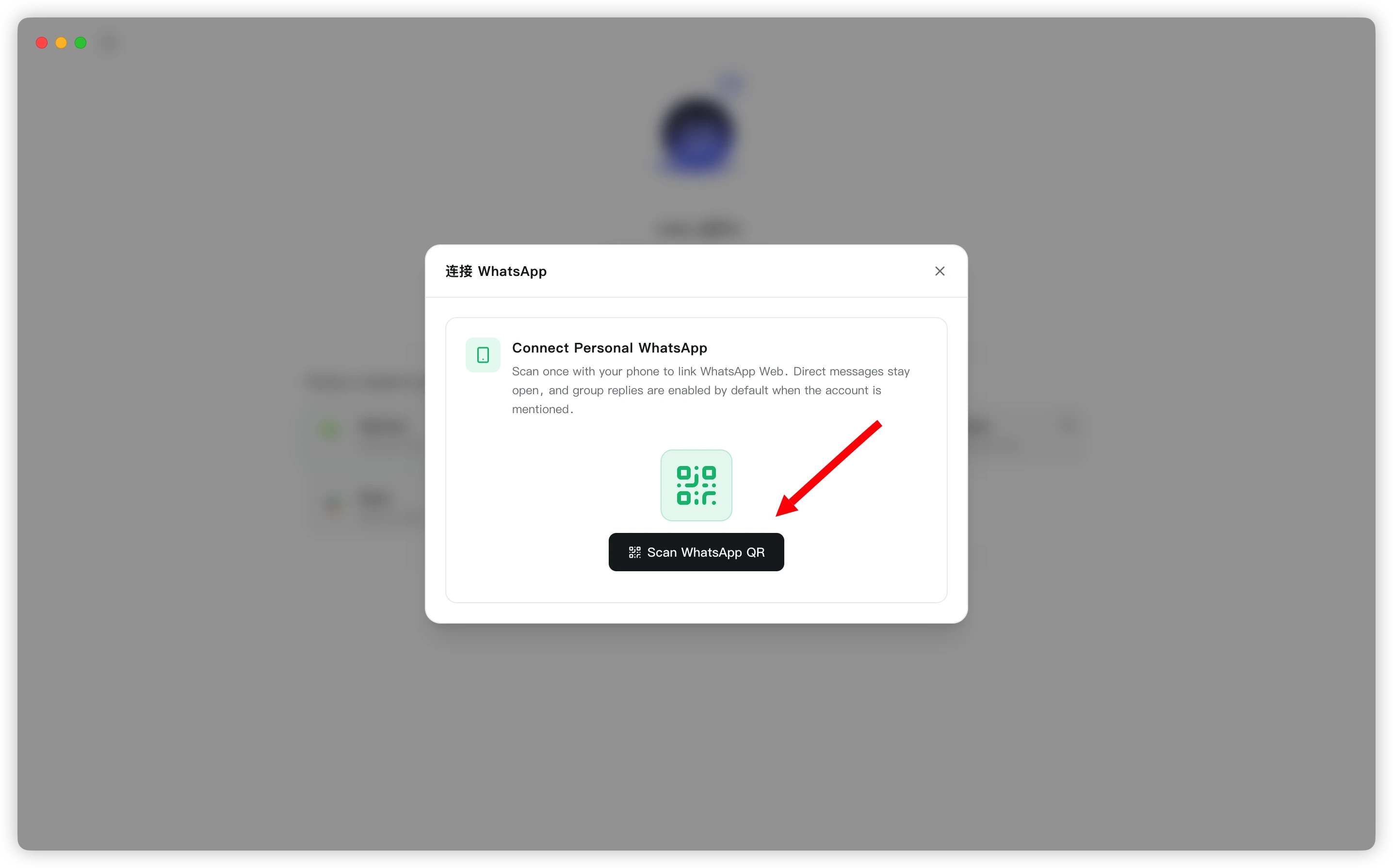
- In the "Connect WhatsApp" dialog, click the Scan WhatsApp QR button.
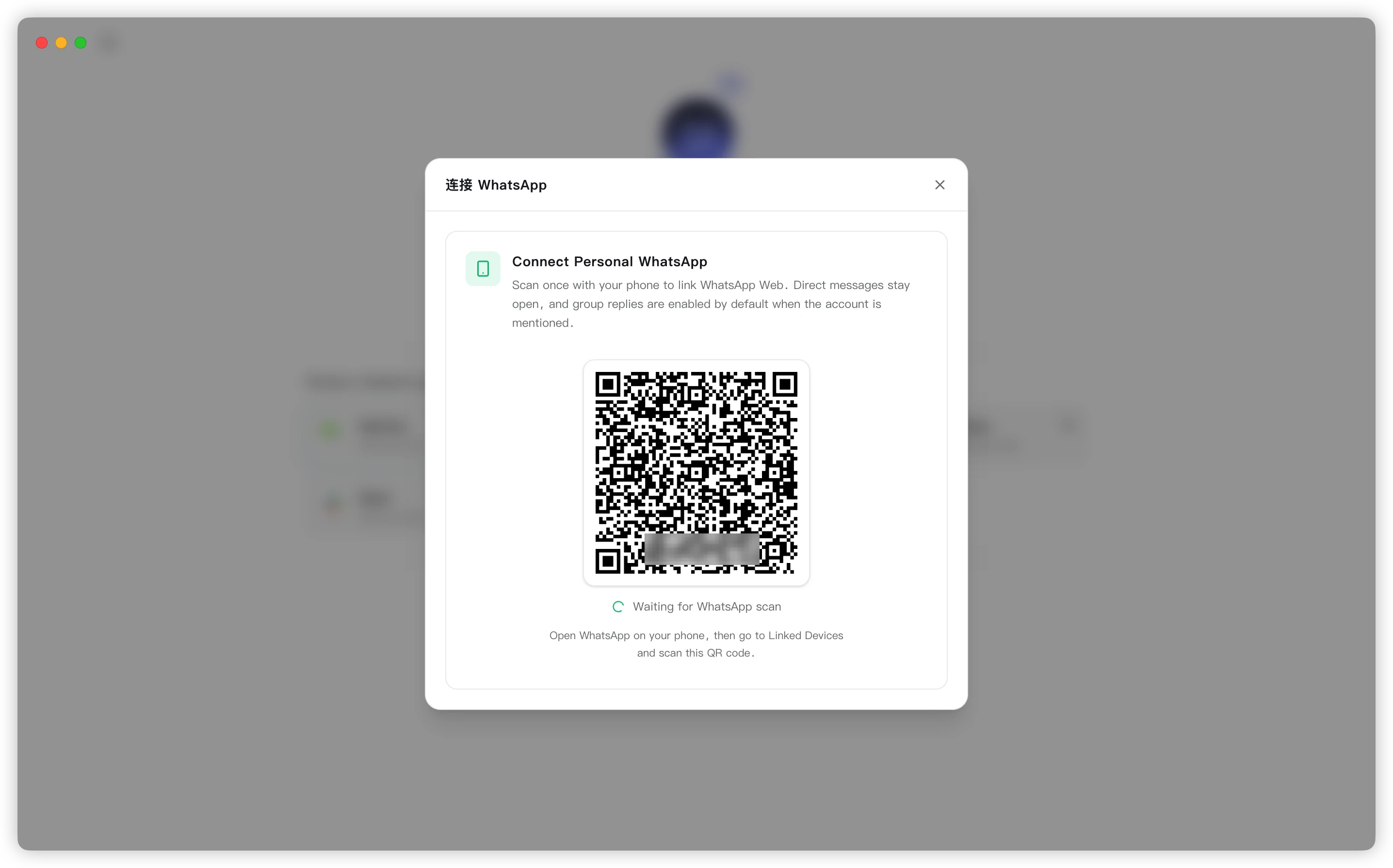
- nexu will generate a QR code and show "Waiting for WhatsApp scan".
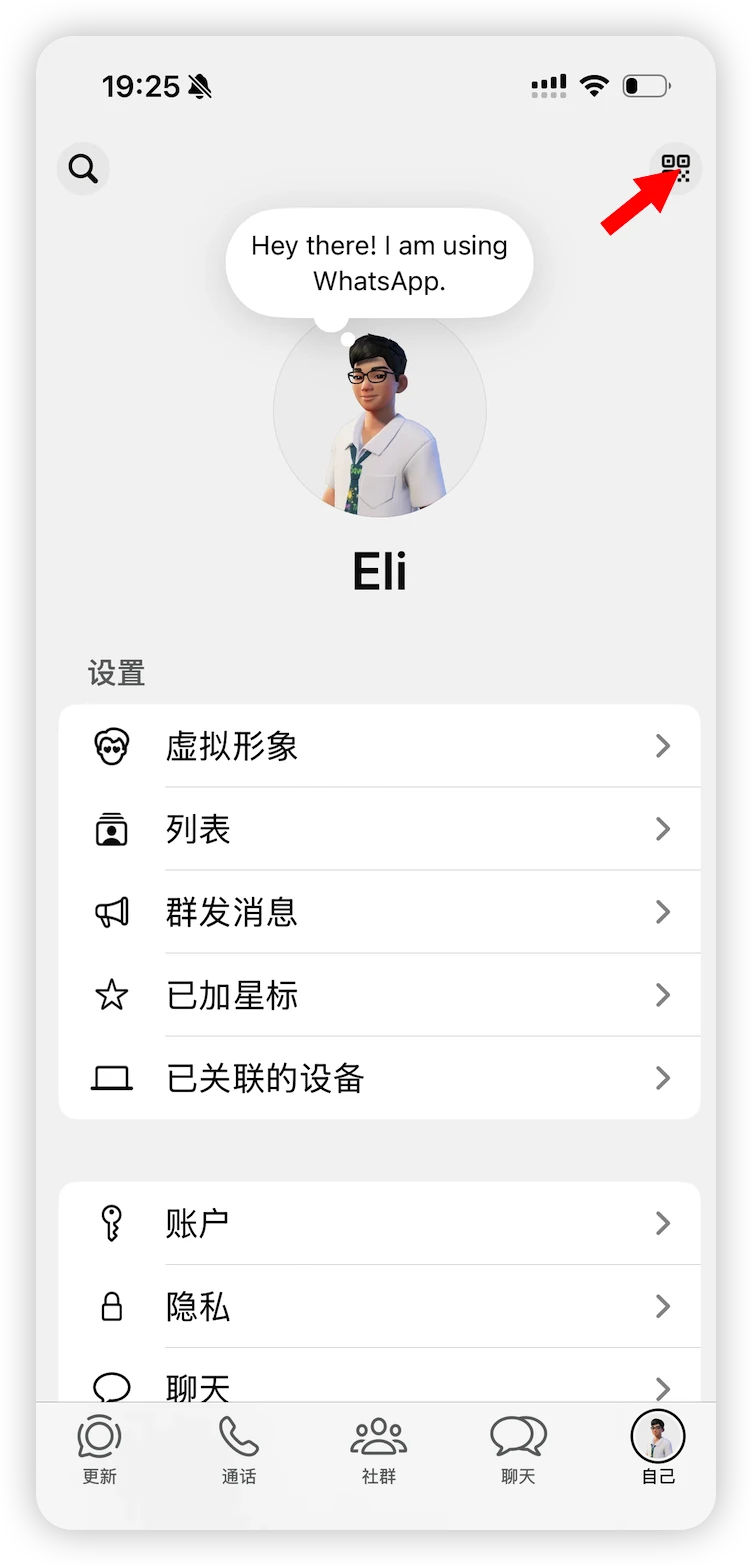
- Open WhatsApp on your phone, tap the "You" tab at the bottom, then tap the QR code icon in the top right.
- On the QR code page, tap the Scan button at the bottom.
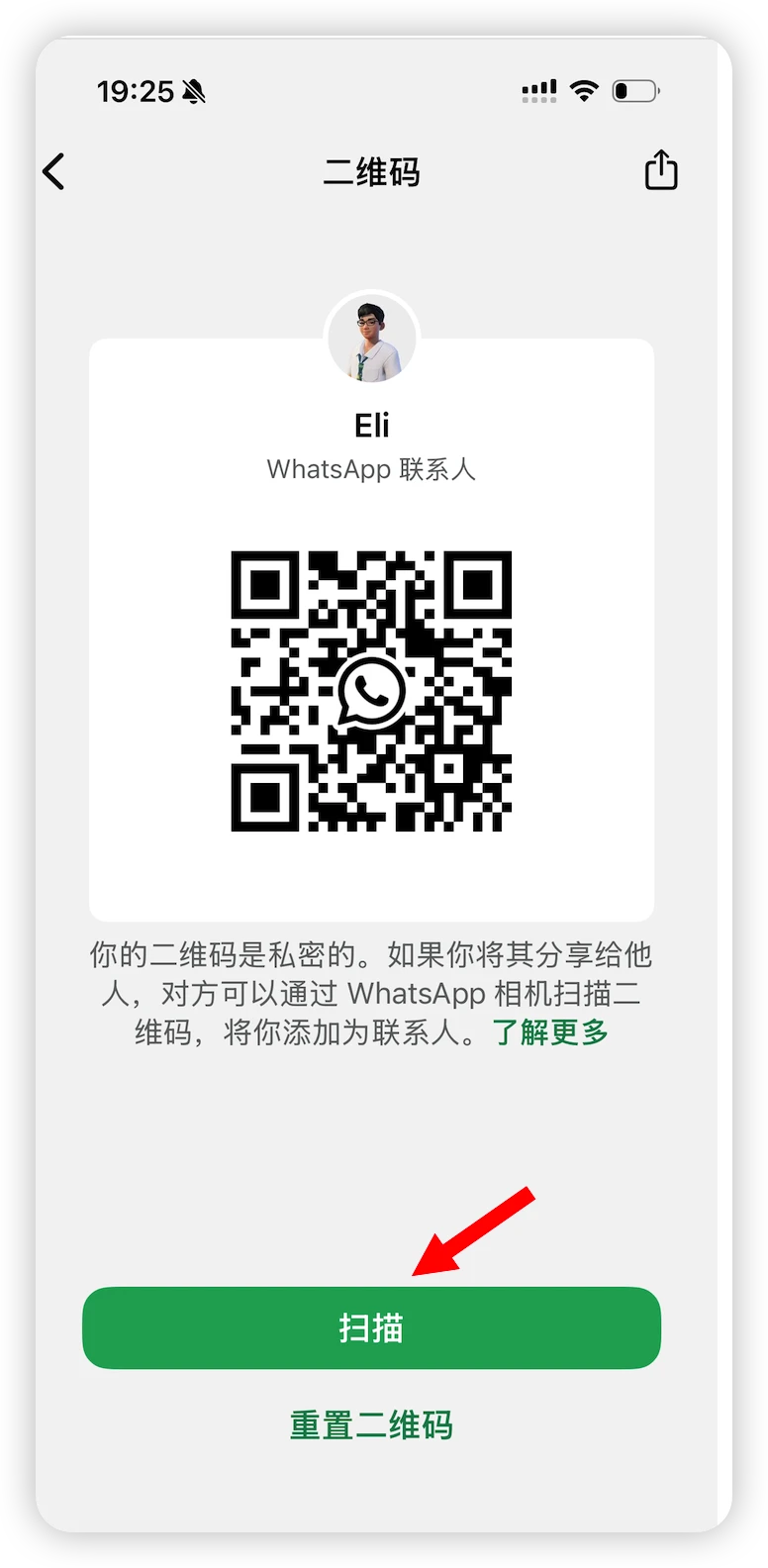
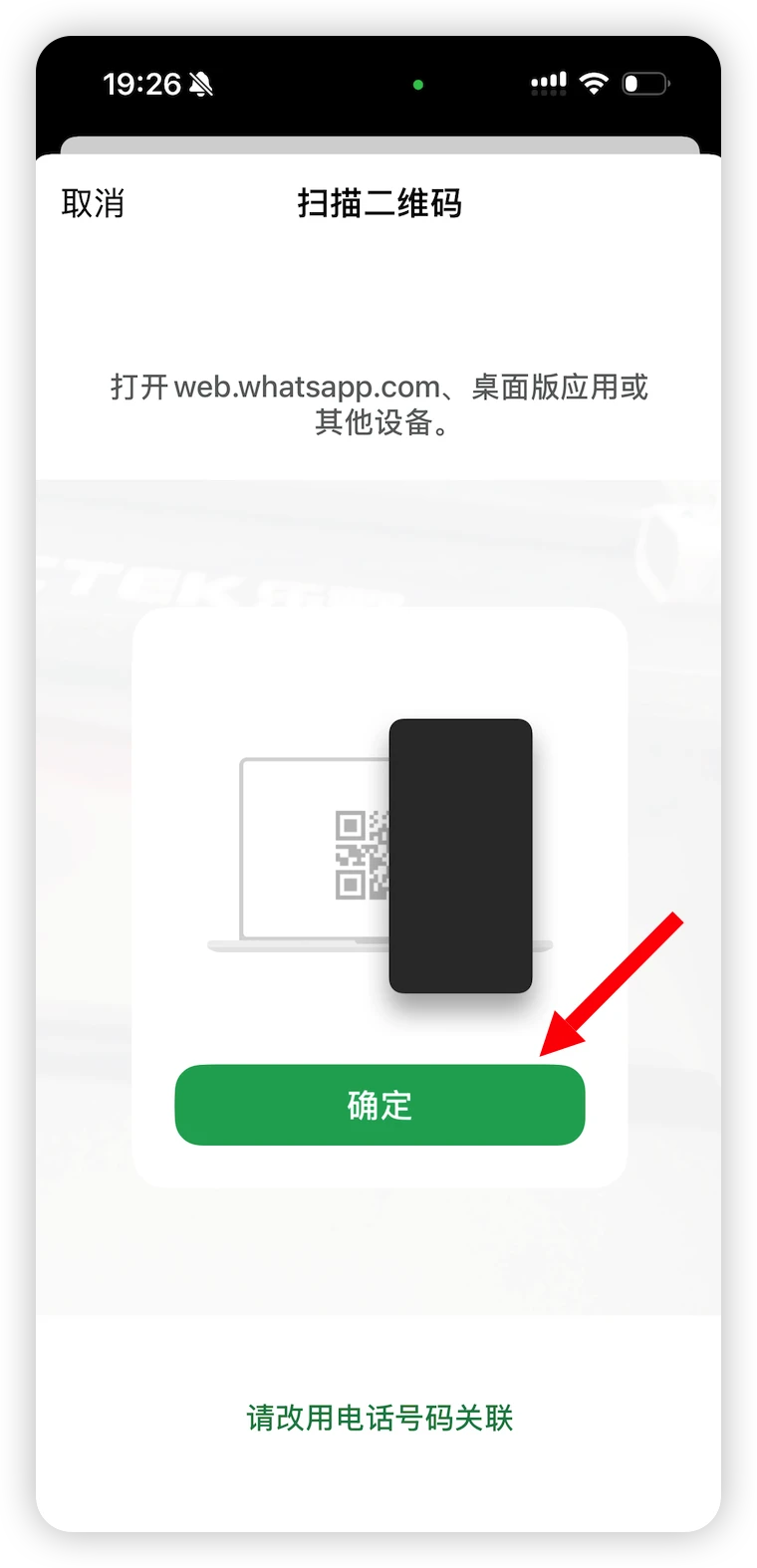
- Point your phone at the QR code on your computer screen. Once scanned, tap OK to confirm the link.
Step 3: Start Chatting
Once the QR code is scanned, the WhatsApp channel will show as connected. Click Chat to start a conversation with your Agent 🎉
FAQ
Q: The QR code keeps loading and never appears — what should I do?
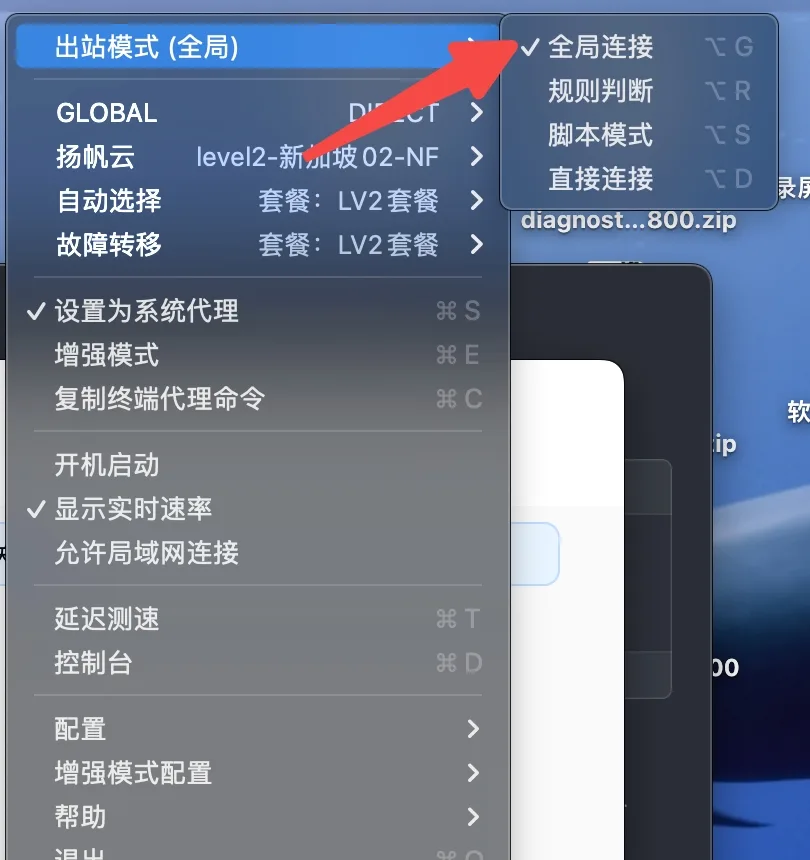
WhatsApp requires a stable connection to its servers to generate the QR code. If you're using a proxy tool (such as Clash, Surge, etc.), switch the outbound mode to Global and then click "Scan WhatsApp QR" again.
For Clash: click the menu bar icon → Outbound Mode → Global.
Q: Do I need a public server?
No. nexu connects directly via the WhatsApp Web protocol — no public IP or callback URL required.
Q: Do I need a WhatsApp Business account?
No. A personal WhatsApp account works fine.
Q: Will this affect my normal WhatsApp usage?
No. nexu connects as a linked device, exactly like using WhatsApp Web on a computer. Your phone continues to work normally.
Q: Can the Agent reply when my computer is off?
nexu needs to be running. As long as the nexu client is active in the background (and your computer isn't asleep), the Agent can reply to WhatsApp messages 24/7.