

Windows Installation Guide
Who This Guide Is For
- Users who installed the Windows beta: You need to disable Smart App Control before installing the official release.
- First-time Nexu Windows users: No action required — you can download and install directly.
Background
The code signing certificate for the Nexu Windows release is currently being processed and is expected to be ready in two weeks. In the meantime, Windows Smart App Control may block the unsigned installer. If you previously had the beta installed, Smart App Control may be in evaluation mode and needs to be turned off manually.
Steps
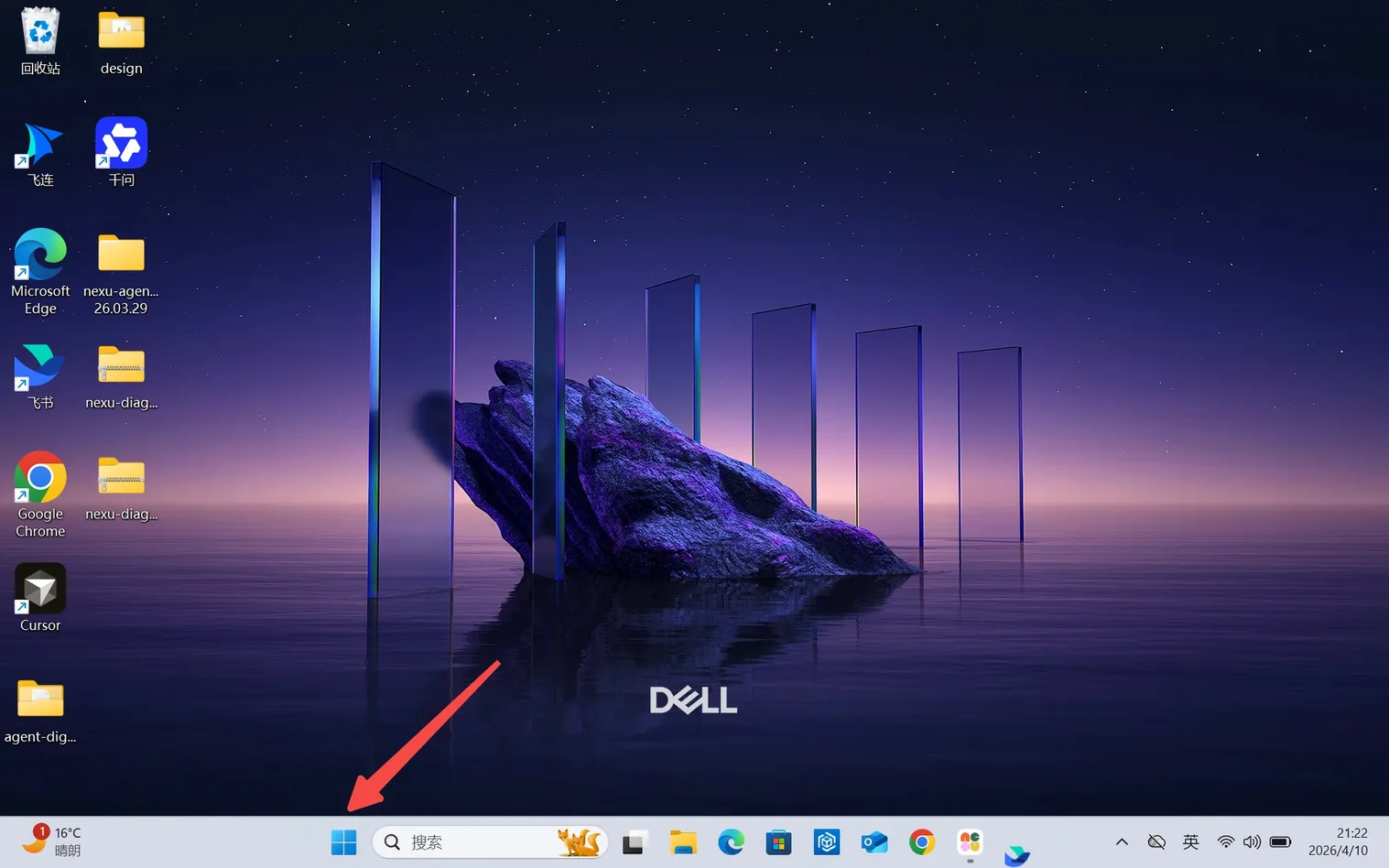
Step 1: Open the Start Menu
Click the Windows Start Menu in the bottom-left corner of the taskbar.
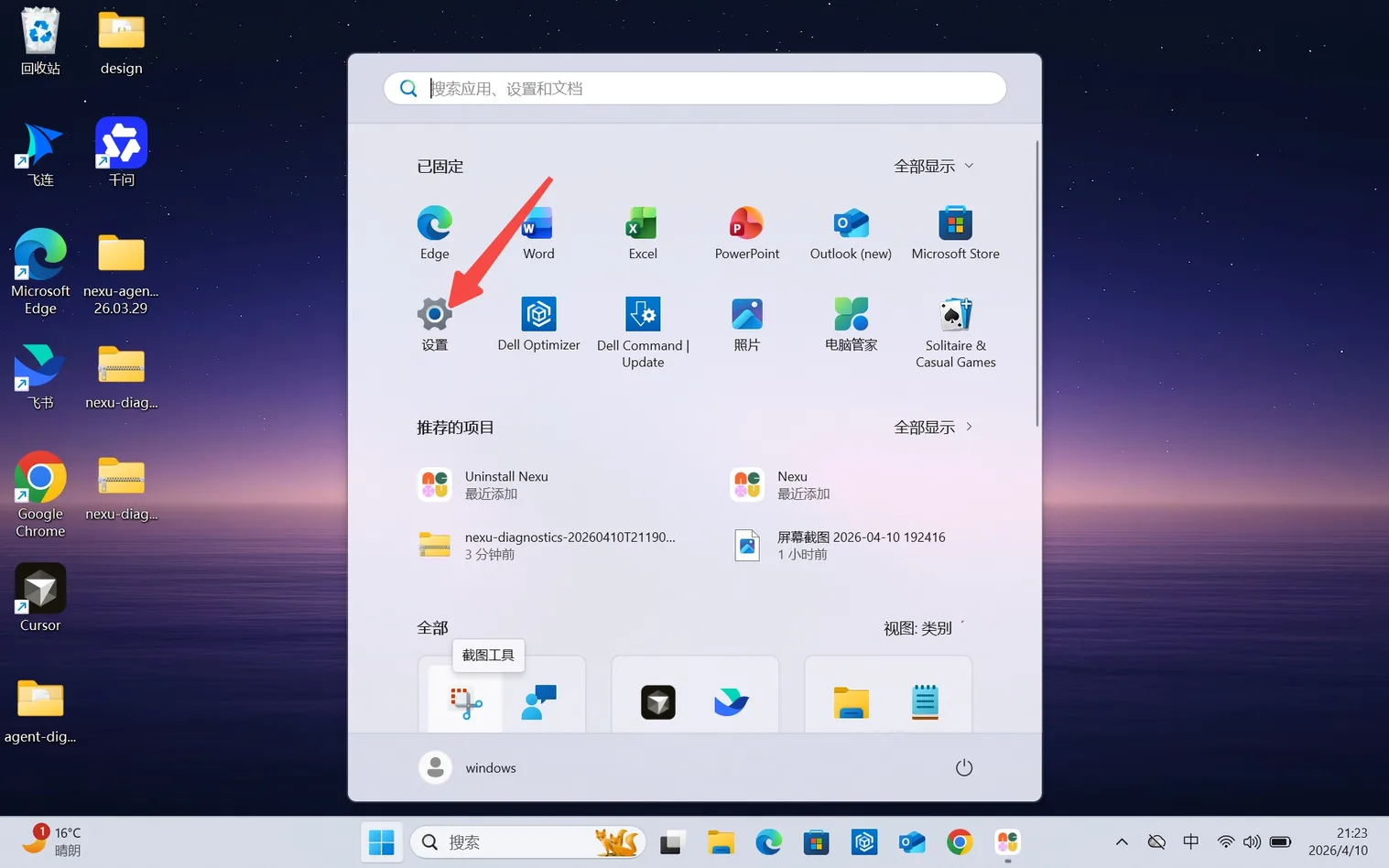
Step 2: Open Settings
In the Start Menu, click Settings.
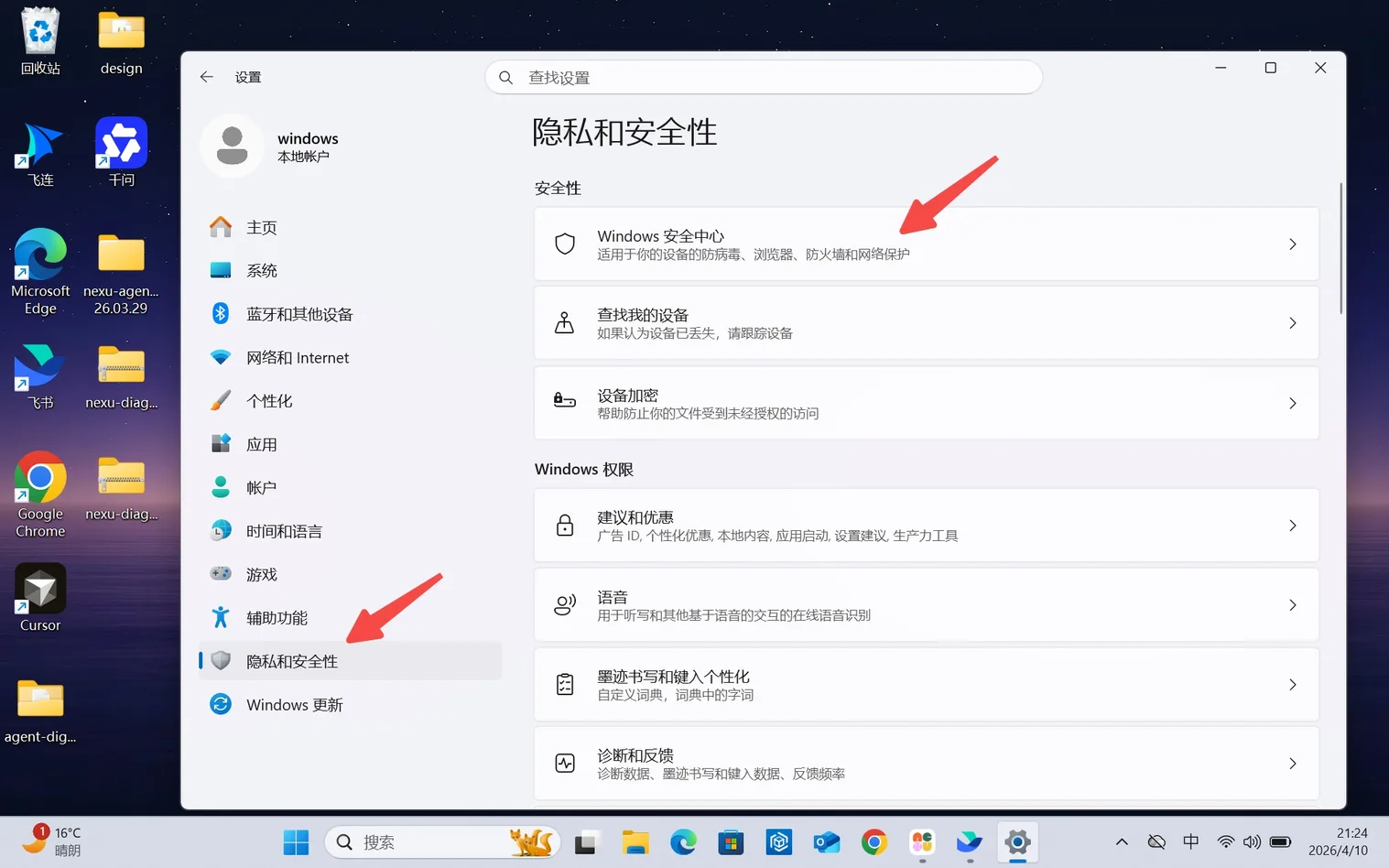
Step 3: Go to Privacy & Security
In the left sidebar, click Privacy & security, then click Windows Security on the right.
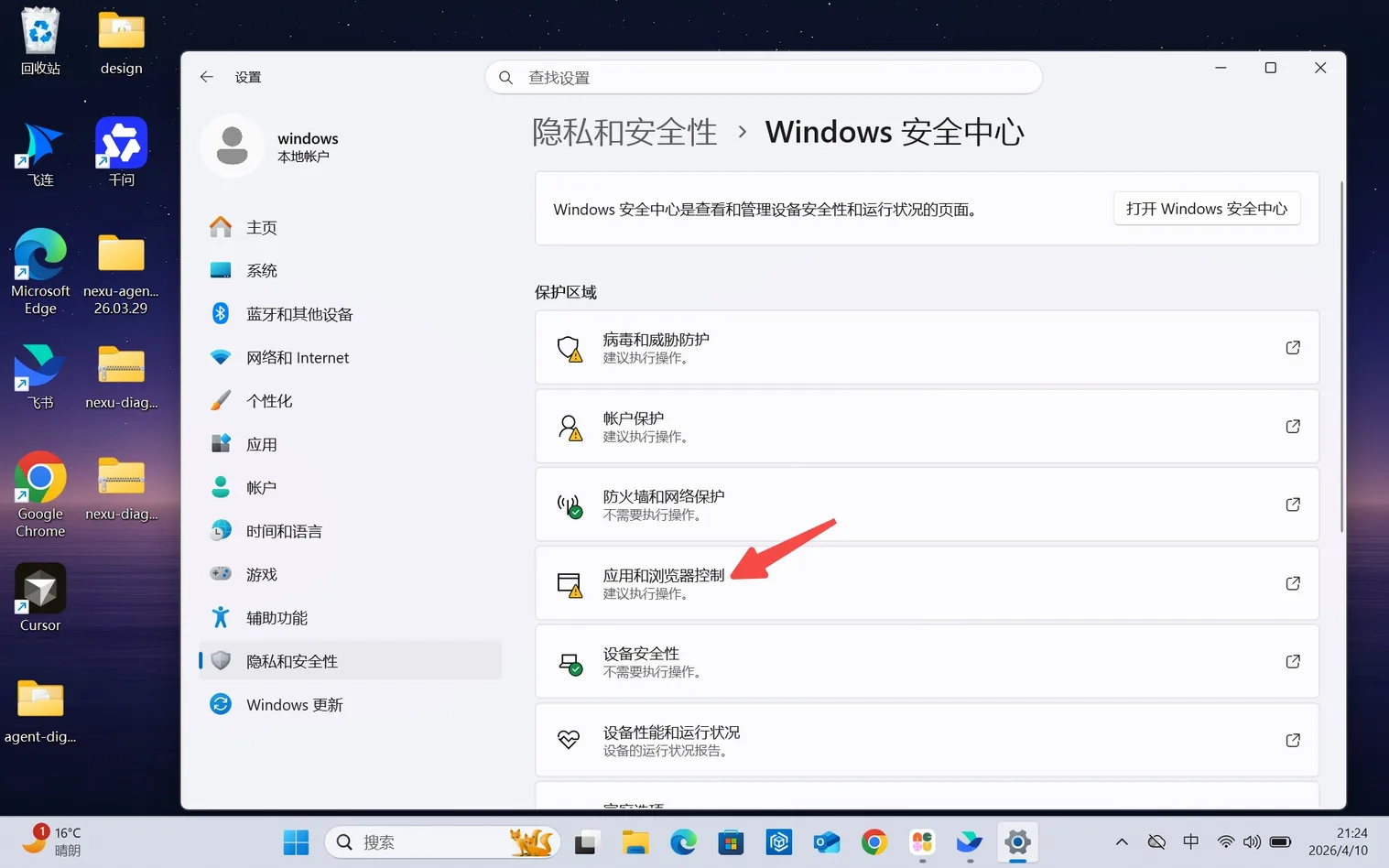
Step 4: Open App & Browser Control
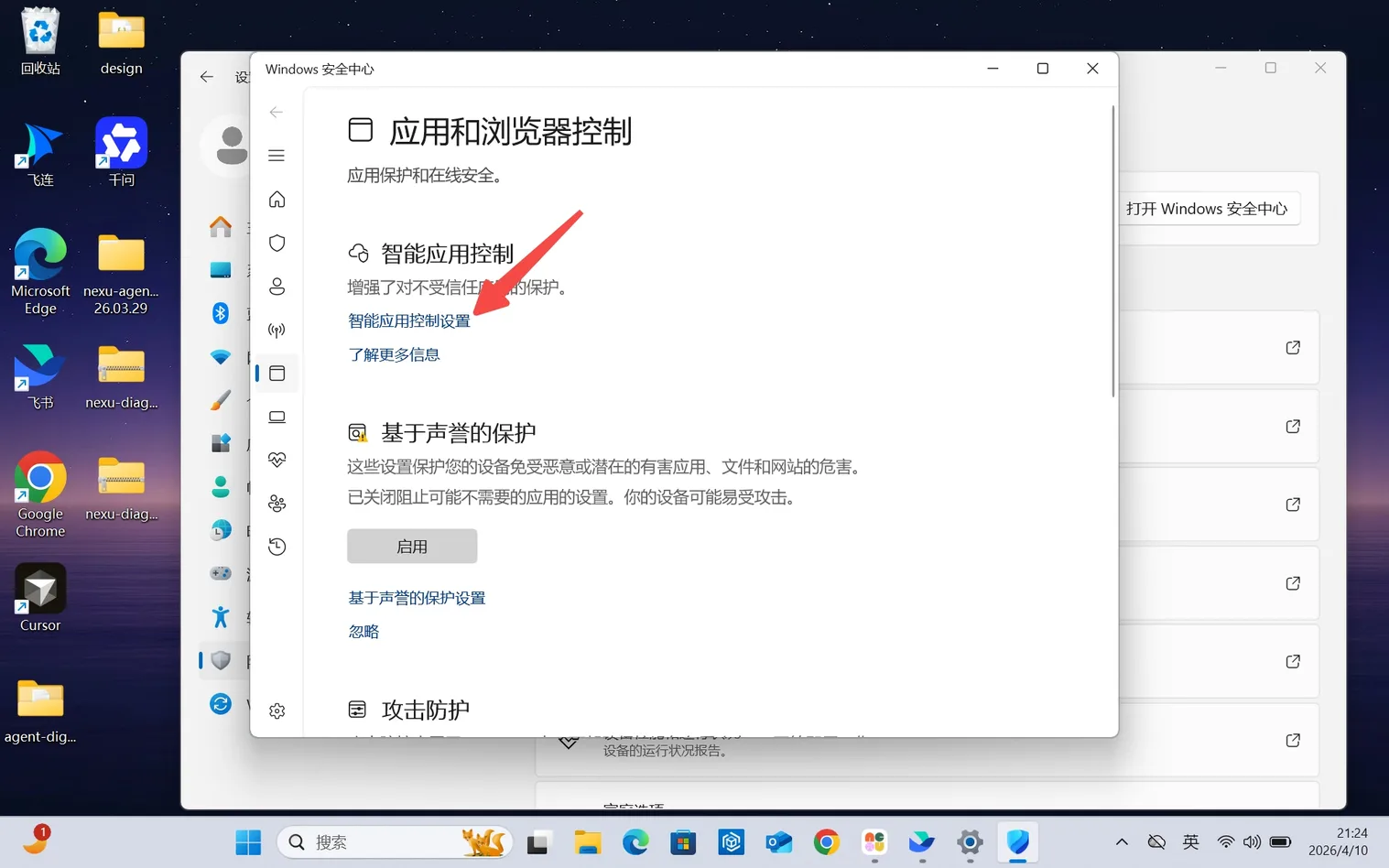
In Windows Security, click App & browser control.
Step 5: Open Smart App Control Settings
Click Smart App Control settings.
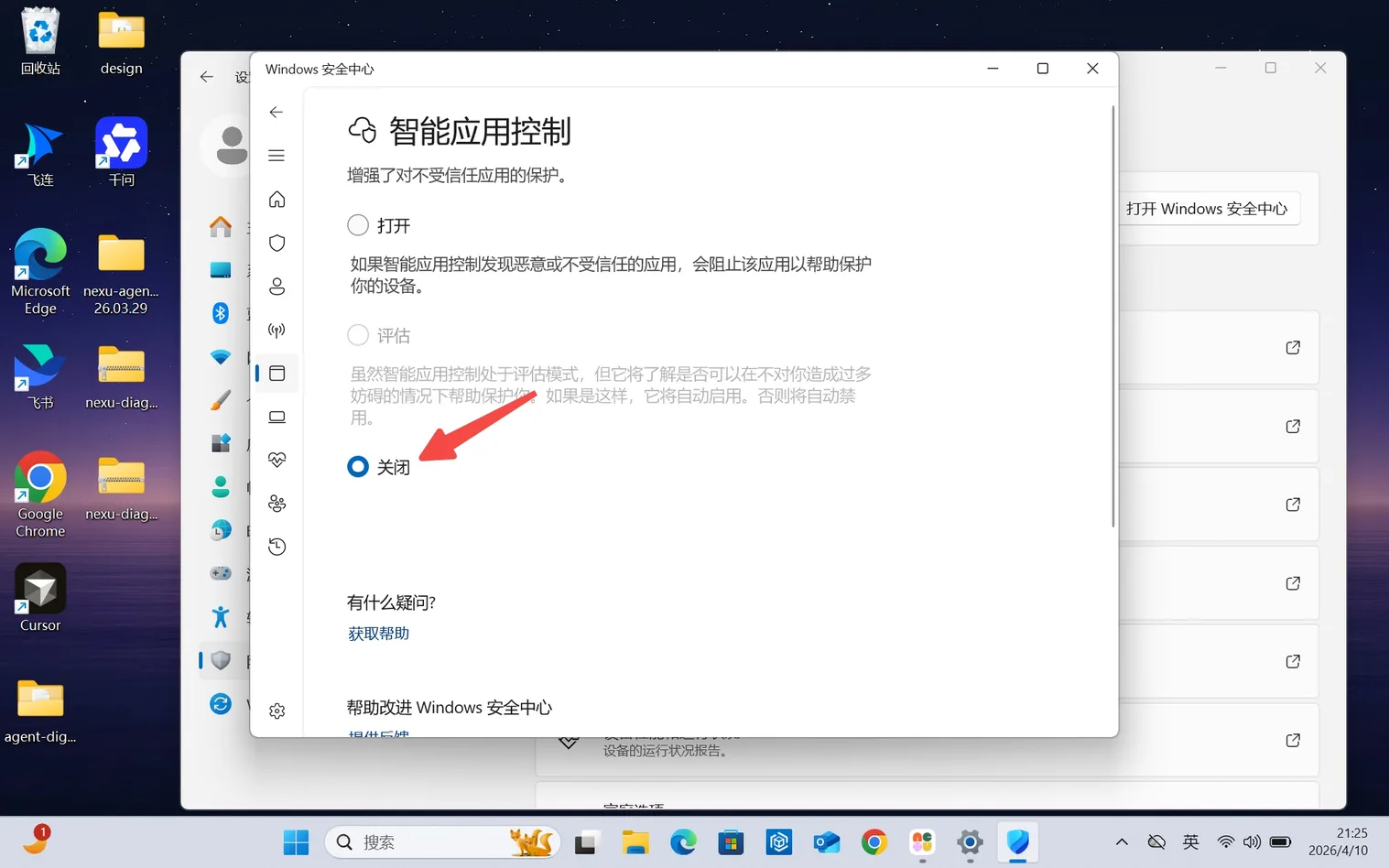
Step 6: Turn Off Smart App Control
Select Off.
Once done, visit nexu.io to download and install the Nexu Windows release.
Note: On first launch, the Agent may take around 2–5 minutes to initialize before it is ready to use.
Note: Once the official signing certificate is issued, Nexu installers will pass Windows verification and this step will no longer be needed.